Gaming
Jan 23, 2026
Learn the real causes of mouse, keyboard, and controller latency and follow a proven step-by-step guide to reduce delay and improve responsiveness. Photo by: Youtube
High FPS in Fortnite doesn't always stop input lag from messing up your game. If your moves feel slow or your aim feels off, it's likely a latency issue, not a performance one.
This guide looks at why input lag happens in Fortnite. It also gives you proven fixes that competitive players use to get the fastest response times.

Input lag is how long it takes for your actions, like clicking a mouse or pressing a key, to show up on the screen.
Delayed building placement
Shots firing late
Mouse feels heavy or floaty
Fast edits feel inconsistent
Good FPS but poor responsiveness
Having a high FPS doesn't always mean you'll have low input lag.
VSync and sync conflicts
Incorrect FPS caps
Windows background processing
GPU driver latency settings
Display and monitor settings
Network buffer delay (often mistaken for input lag)
VSync can make your game feel laggy.
Fortnite Settings → Graphics → VSync → Off
NVIDIA Control Panel / AMD Adrenalin → VSync → Off
If you use G-SYNC or FreeSync, keep VSync off in-game.
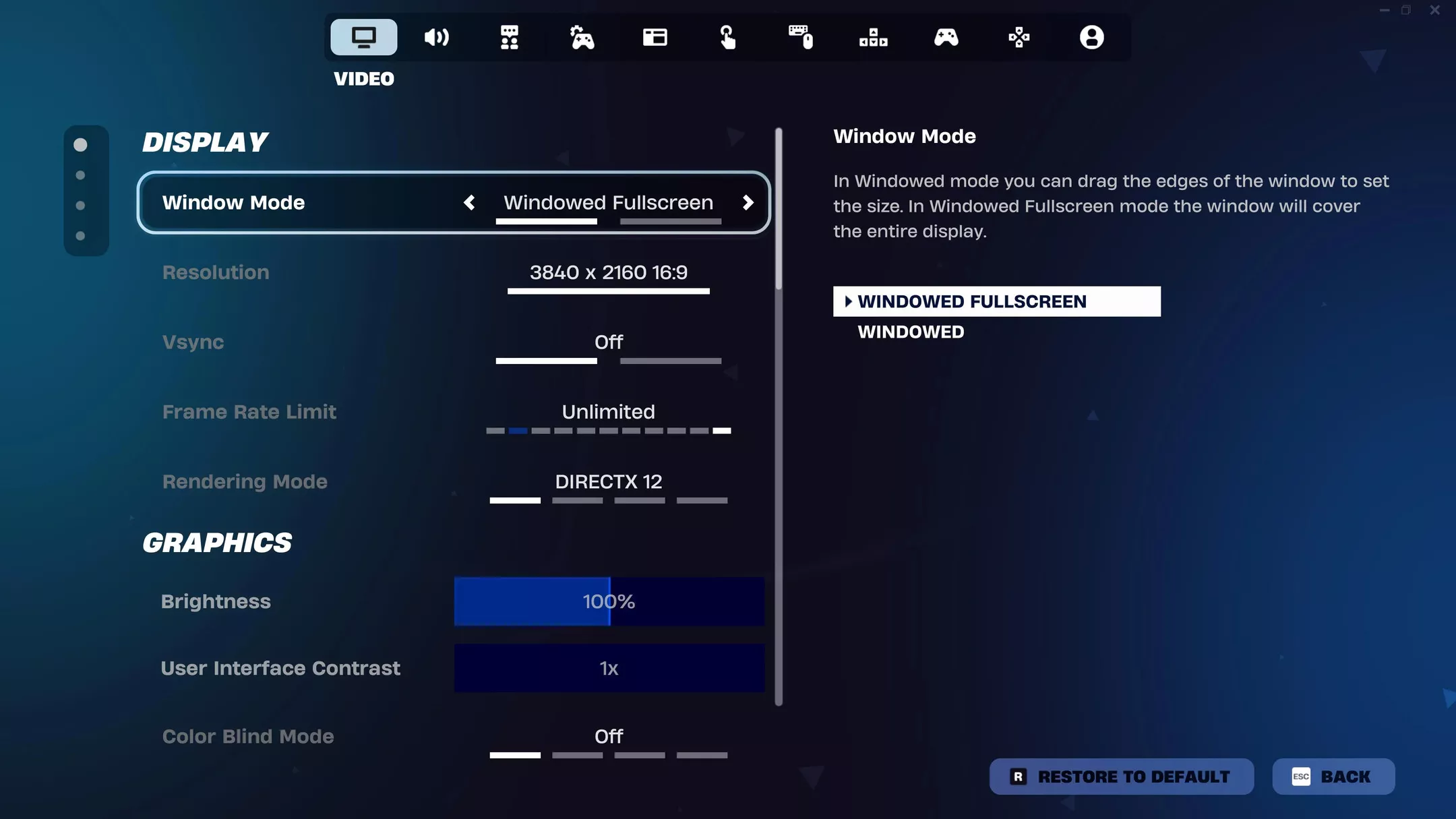
Display Mode → Fullscreen
Avoid Windowed Fullscreen or Borderless
Exclusive fullscreen can make your game run faster by cutting down on operating system delays.
Always cap your FPS.
Monitor | FPS Cap |
|---|---|
144 Hz | 140-144 |
165 Hz | 160 |
240 Hz | 225-240 |
360 Hz | 330-360 |
Stable frame pacing means less input lag.
Fortnite Settings → Video → Low Latency Mode: On
This makes rendering faster.
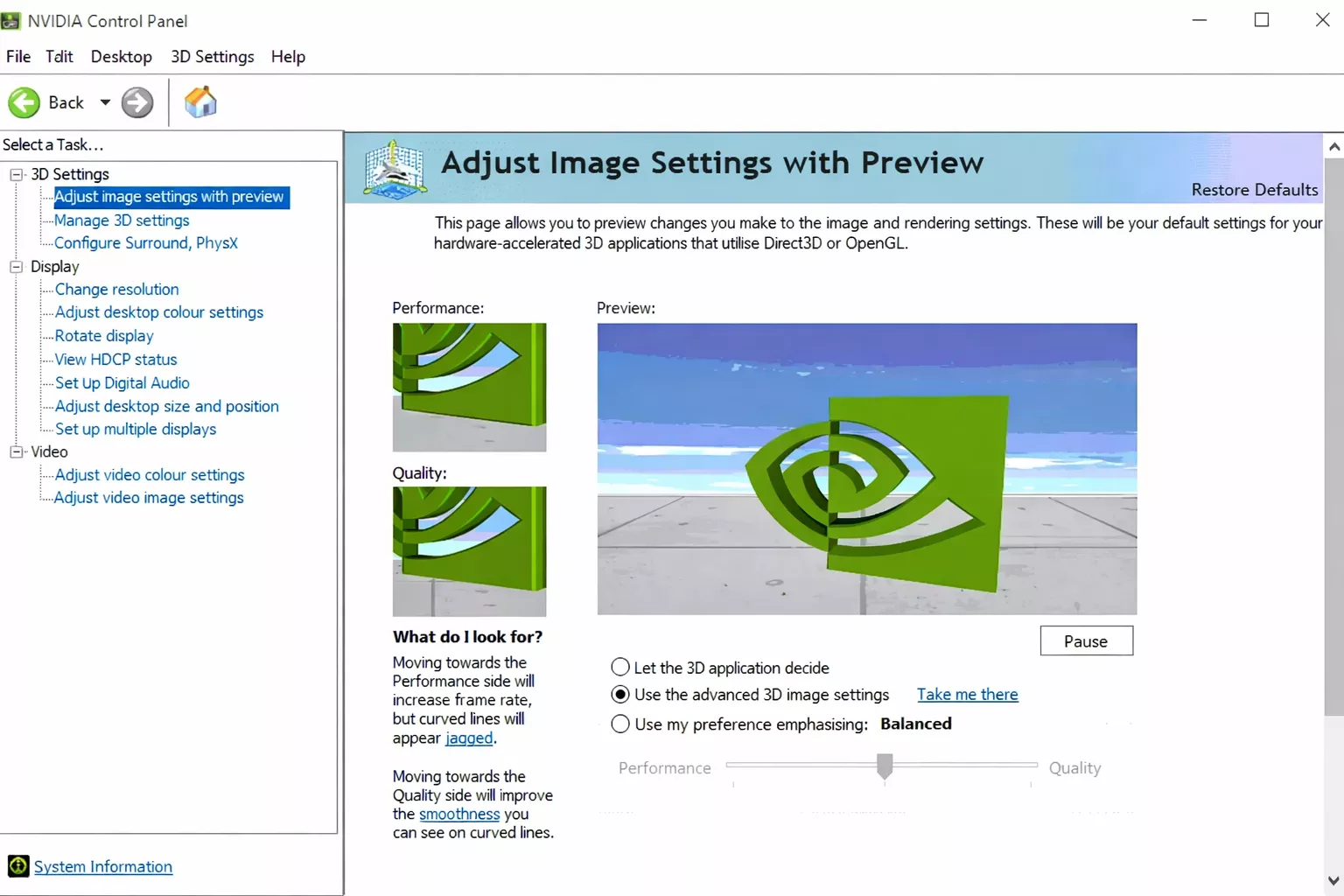
Low Latency Mode → Ultra
Power Management → Prefer Maximum Performance
Vertical Sync → Off
Triple Buffering → Off
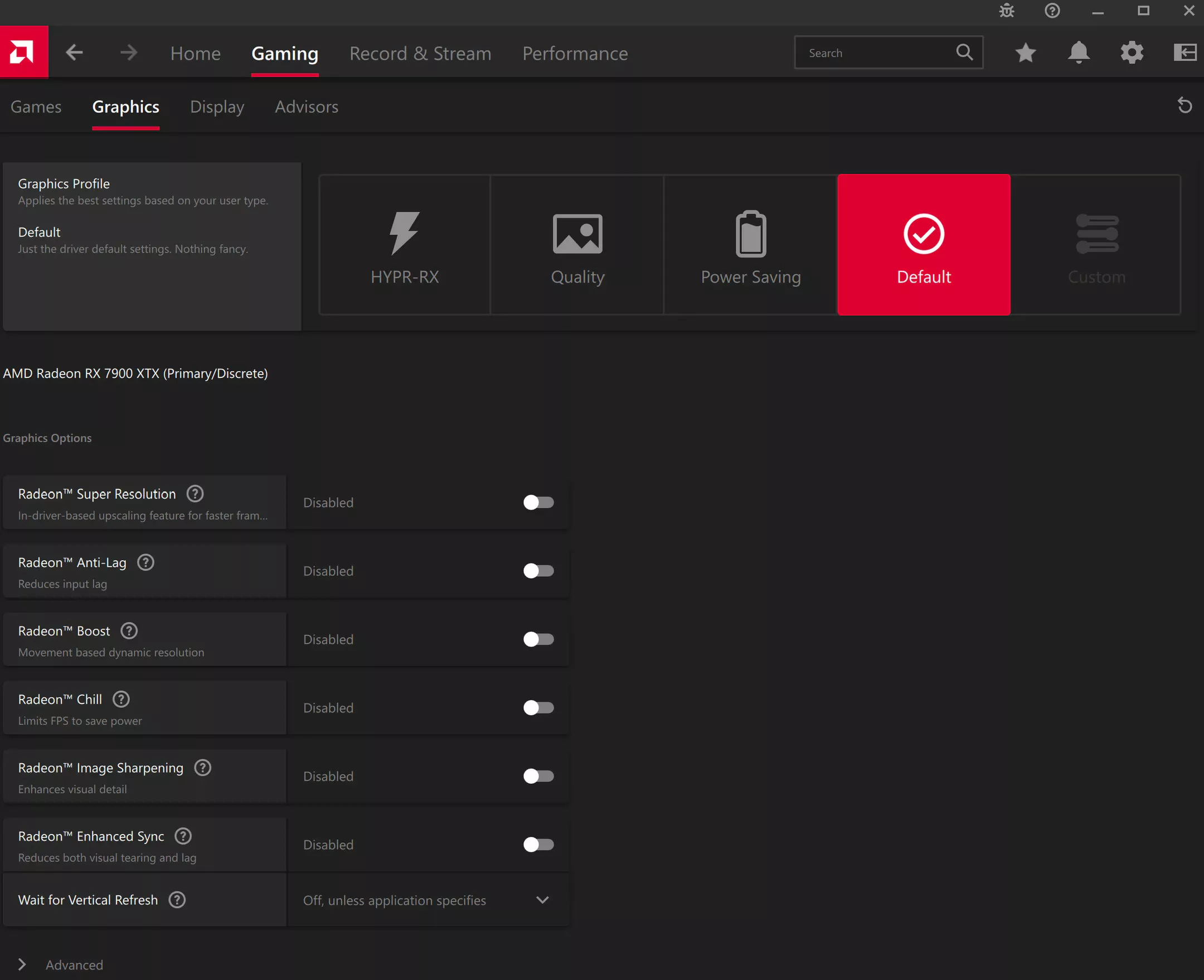
Anti-Lag → On
Enhanced Sync → Off
Radeon Chill → Off
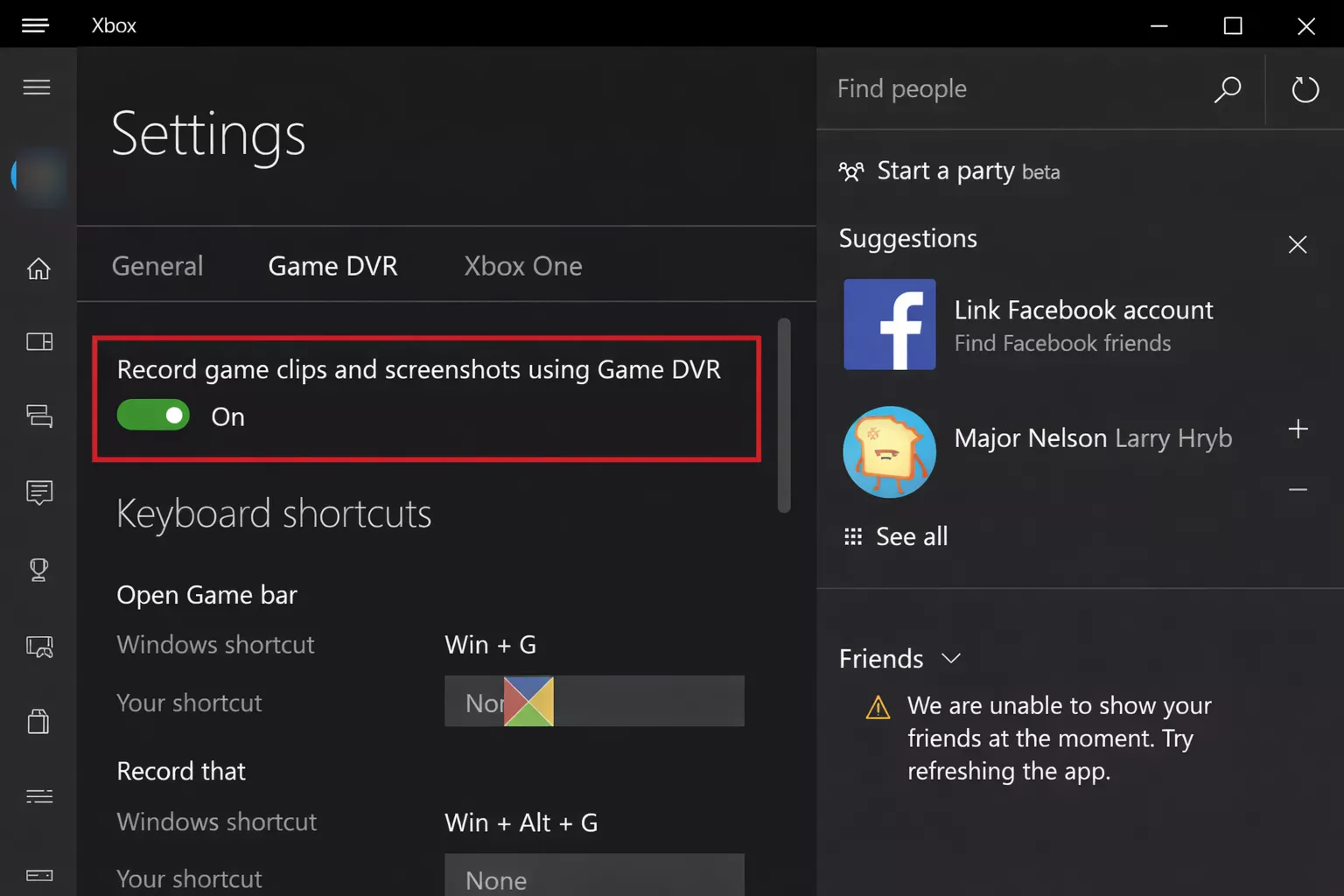
Overlays can cause input lag.
Xbox Game Bar
Background recording
Discord overlay
NVIDIA ShadowPlay / AMD ReLive
Windows Settings → Gaming → Captures → Disable background recording.
Windows Mouse Acceleration → Off
Pointer Precision → Disabled
Use a wired mouse if possible
Polling rate: 500-1000 Hz (test stability)
Disable vendor macro overlays
Use USB ports directly on motherboard
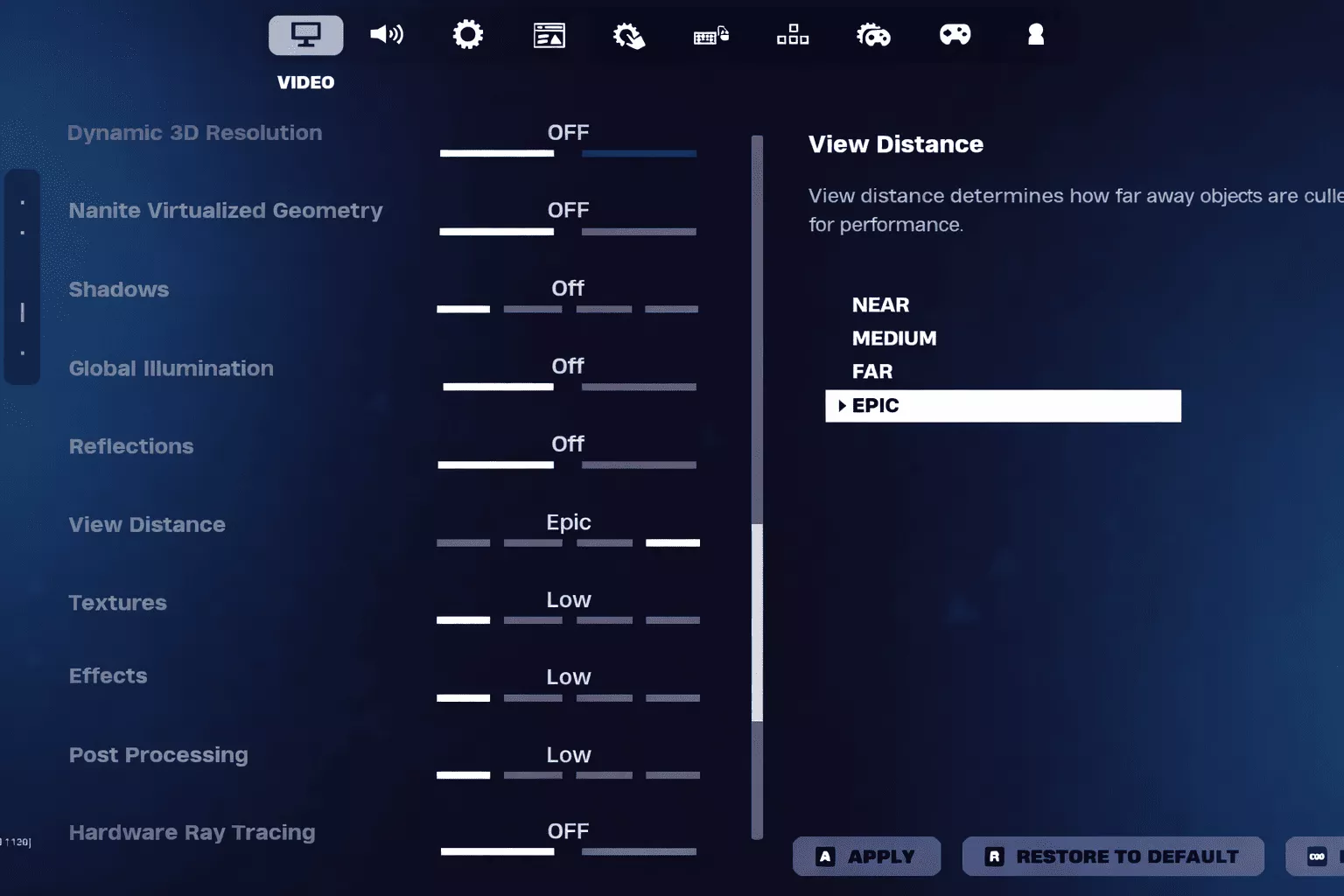
If you crank up the graphics, expect longer render times and some input lag.
Setting | Recommended |
|---|---|
Shadows | Off |
Effects | Low |
Post Processing | Low |
Anti-Aliasing | Off or Low |
Textures | Medium |
Motion Blur | Off |
Lower GPU load = faster frame response.
Power Plan → High Performance or Ultimate Performance
Disable CPU parking (advanced users)
Close background CPU-heavy apps
Keep the game's clock steady while playing.
Sometimes what people call input lag is really just network delay.
Check ping and packet loss
Use wired Ethernet
Avoid downloads while playing
When there's lag, it messes with whether your shots land, not how quickly your game reacts to your controls.
Fortnite.exe → Properties → Compatibility → Disable fullscreen optimizations
Ensure Windows is set to your monitor’s maximum refresh rate
Install Fortnite on an NVMe SSD to reduce asset-related delays
Mistake | Why It Hurts |
|---|---|
VSync enabled | Adds frame buffering |
Uncapped FPS | Inconsistent frame times |
Borderless window | OS latency |
Overlays active | Interrupts rendering |
Power saving modes | CPU/GPU delays |
Fullscreen exclusive
VSync off
FPS capped correctly
Low Latency Mode on
Overlays disabled
High Performance power plan
Low graphics for consistency
This setup focuses on speed rather than graphics.
Here's what usually causes input lag in Fortnite:
Sync settings like VSync, or overlays
Wrong FPS caps
Windows running stuff in the background
How your GPU driver is set up for latency
You can get Fortnite feeling quick and responsive even on not-so-powerful computers, if you set things up right.
If you're playing to win, getting low latency is more important than having the best graphics settings.