
Gaming
Jan 23, 2026
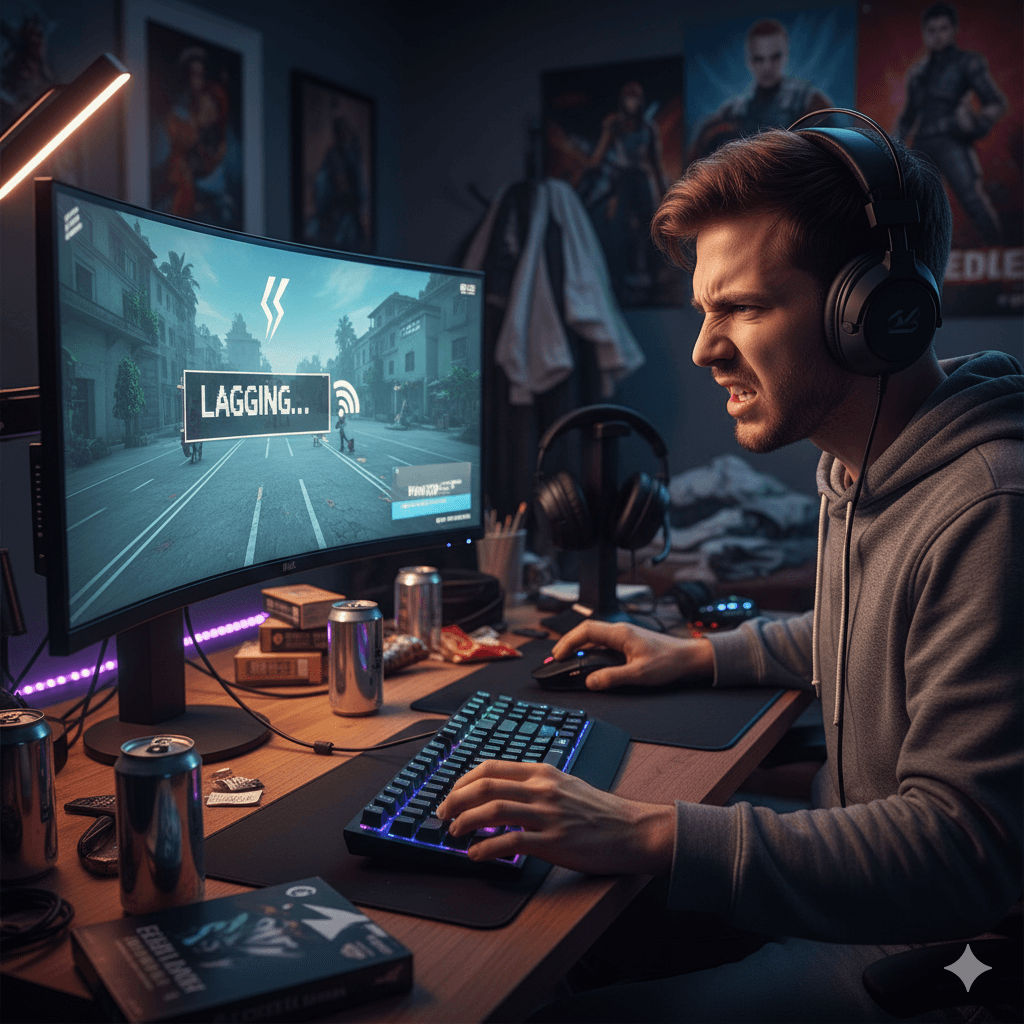
Stop game lag without upgrading hardware. Fix FPS drops, stuttering, ping spikes, and input delay using proven gamer-approved settings and tweaks. Photo by: ABGN
Game lag stinks. It can mess up your ranked matches and make your frame rate drop when things get intense. The good thing is, you don't always have to buy a new graphics card or console.
Pro gamers and streamers adjust their software, network, and system settings to avoid any kind of lag. These tricks also work if you have a basic computer.
Many players notice that lag feels worse in online shooters than in story games. This is not completely a hardware issue, competitive games are built differently, relying on servers, tick rates, and real-time synchronization.
This guide puts together easy ways to fix lag on your PC, console, and following advice from the web, esports pros, and game developers.
Lag Type | What You Feel | Root Cause |
|---|---|---|
FPS drops | Choppy visuals | Background apps, bad settings |
Stuttering | Freezes & hiccups | CPU/GPU scheduling issues |
High ping | Delayed actions | Network routing & Wi-Fi |
Input lag | Late response | VSync, overlays, drivers |
Basically, fixing lag means finding the problem, not buying new hardware.
Just because you have everything set to max doesn't mean your game will play better. Pros care more about smooth gameplay.
Shadows: Set to Low or Medium
Turn off Motion Blur, Film Grain, Chromatic Aberration
Set Texture Quality based on your VRAM
Use Fullscreen mode
Result: More stable frame rates.
Some apps use up your computer's power without you knowing.
Chrome / Edge (especially YouTube or Twitch tabs)
Discord overlays (turn off the overlay, but keep voice chat)
Xbox Game Bar (Windows)
OneDrive syncing
Extra Programs (unless you need them)
Use Task Manager to stop apps from starting up automatically.
You can lower your ping without paying for faster internet.
Use Ethernet cable instead of Wi-Fi
Restart router before long gaming sessions
Change DNS to:
Google DNS → 8.8.8.8 / 8.8.4.4
Cloudflare → 1.1.1.1
Avoid downloads/streams while gaming
Games like Valorant, Fortnite, and CS2 perform better with a clean network.
Go to Settings → Gaming → Turn Game Mode ON
Set Power Plan to High Performance
Go to Graphics Settings → Turn on Hardware-Accelerated GPU Scheduling
Stop background downloads
Turn off extra features
Use performance mode (PS5 / Xbox)
Old drivers can cause lag, but updating too much can also cause problems.
Only update your graphics drivers when there are specific fixes for a game you play
Don't use beta drivers unless you need them
Update your network drivers every few months
Only get drivers from official websites.
Overlays can slow down your frame rate.
Discord Overlay
Steam Overlay
Xbox Game Bar Recording
NVIDIA ShadowPlay (if you're not recording)
Overlays can reduce your frame rate by 10-20%.
Input lag can make it feel like you're lagging even with high FPS.
Turn VSync OFF
Turn on Low Latency Mode (NVIDIA / AMD)
Use a wired mouse and controller
Set your monitor's refresh rate right
You don't need to download anything risky to speed up your PC.
Use Windows Storage Cleanup
Delete temporary files
Uninstall programs you don't use
Keep 15-20% of your hard drive free
Don't use registry cleaners.
Yes. Most lag comes from settings, apps running in the background, and network issues, not your PC itself.
Yes. Lowering shadows and other effects can really help improve your frame rate.
Yes. Ethernet makes your connection more stable.
Most of them don't. It's safer and more effective to adjust settings yourself.
Yes, if they are out of date or not working right.