
Gaming
Jan 23, 2026
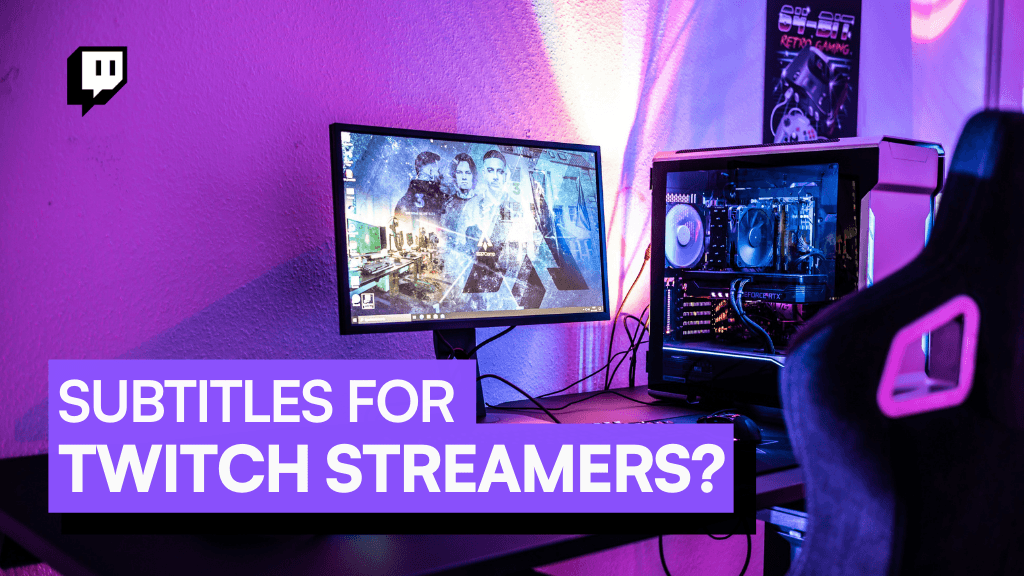
Learn how to add automatic subtitles and live captions to Twitch streams using OBS plugins, Twitch extensions, AI captioning tools, and browser-based solutions. Full 2026 step-by-step guide for streamers. Photo by: ABGN
Subtitles are now a must-have for streaming. Tons of people watch Twitch at work, school, or without headphones. Plus, many viewers have trouble hearing. So, subtitles are super important for creators to add to their streams.
Even in 2026, Twitch still doesn't have automatic subtitles for everyone. Some categories have test versions, but most streamers need to use other tools, OBS plugins, or AI to get subtitles working.
The cool thing is, it's easier than ever to make subtitles on Twitch. This guide will show you the best ways to do it, how to set things up, and which option is right for you.
Subtitles can really improve your stream in a few ways:
Makes content accessible for deaf or hard-of-hearing viewers
Helps viewers watching muted (mobile or public places)
Improves viewer retention and engagement
Helps international audiences follow speech
Increases professional stream quality
Many top streamers report higher chat interaction and longer watch time once captions are enabled.
Here are four good ways to do it:
OBS Captioning Plugins (most control)
Twitch Caption Extensions
AI Real-Time Captioning Tools
Browser-Based Live Captioning (Chrome/Edge)
With OBS Studio, you can add real-time subtitles to your streams using plugins like OBS-Live Captioning or OBS Captions by Google Speech API.
Open OBS
Go to Tools → Captions
Choose a speech-to-text option:
Google Speech Recognition
Whisper AI
Vosk
Select your microphone audio source
Enable Show on Stream or Send to Twitch Closed Captions Track
Start streaming
English, Spanish, German, French, Portuguese, Japanese, Korean and more (varies by engine).
Pros:
Free or low cost
High accuracy
Captions embedded or toggleable
Cons:
Requires OBS setup
Accuracy depends on microphone quality
Some Twitch extensions let you add captions without changing anything in OBS.
Popular extensions include:
Auto Closed Captions
Streamer.bot Caption Integration
OpenAI Whisper Captioning (3rd party extension)
Go to Twitch Creator Dashboard
Select Extensions
Search “Captions” or “Subtitles”
Install → Configure → Activate Overlay
This method works best for console streamers or streamers who don't want technical configuration.
AI caption tools have become more accurate thanks to models like Whisper, Deepgram Speech-to-Text, and Meta AI transcription.
Services include:
Service | Cost | Accuracy | Notes |
|---|---|---|---|
Web Captioner | Free/paid | Very high | Browser-based |
AutoSub.ai | Paid | High | Advanced customization |
StreamText | Paid | Enterprise grade | Used by accessibility orgs |
How It Works:
Run the AI caption tool
Route your microphone audio into it
Output subtitles to Twitch via browser overlay or caption source